Flashing the T-Deck Plus
This section provides step-by-step instructions for flashing the LilyGO T-Deck Plus with Ratspeak using the web-based installer.
Preparation
In order to begin, you will need:
- LilyGO T-Deck Plus device
- USB-C data transfer cable
- A computer with an appropriate browser
In order to use the web flasher, you must be using a browser that supports WebSerial (Firefox 151+, Chrome, Opera, or Edge) in order to detect and connect with the board.
If this is the first time using the T-Deck Plus, ensure that the antenna is attached before powering it on, as using the device without it can damage the radio receiver.
Getting started
-
Navigate over to the Ratspeak download page.
-
Select the T-Deck Plus from the available hardware options presented and select 'Flash in browser'.
Connecting the T-Deck Plus
-
With your T-Deck Plus' main power switched off, connect it to your computer via a data transfer capable USB-C cable.
-
Press on the trackball until you hear a click, and hold it.
-
Turn on the main power of your device while continuing to hold the trackball for three seconds, then release the trackball. Note that the screen will be black, as it has been booted in 'download mode'; it will still be detectable by your computer.
Flashing
-
On the T-Deck Plus download page, click 'Select USB Device'. A menu will appear prompting you to select the proper device. Pair the T-Deck Plus; depending on the system hardware, it may have a variety of names.
-
It is recommended to also turn on full erase under advanced options.
For new users, it is advised to simply use the Full installation. This will provide access to a launcher page to select between booting in either Standalone or RNode modes.
-
Click Flash. The installation process will now commence.
-
A successful flash will produce the below output:
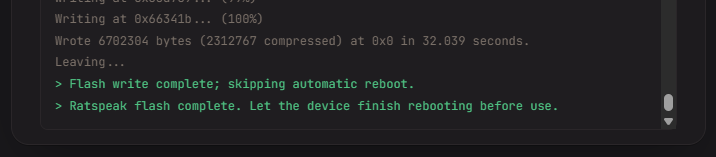
- Simply reboot your device using the button on the left side of the T-Deck Plus. Ratspeak should boot up in a few seconds.
Questions? Reach out in the #documentation channel on our Discord.