Flash upstream RNode on Heltec LoRa32
The RNode tab on the Ratspeak advanced flasher installs upstream RNode firmware. Your Heltec then serves as a radio for Ratspeak or another Reticulum host. This procedure uses the RNode tab; the separately labelled rsNode tab is a private beta and has its own access and installation instructions.
Upstream marks its Heltec firmware experimental. Check your exact board revision and radio band against the available variants before installing.
Preparation
Use Chrome or Edge on a computer, a USB data cable, and an antenna suited to the board's frequency band. Attach the antenna before transmitting. Close other applications using the serial port.
Save any existing firmware's configuration and identity using its backup instructions. Full Erase deletes the device's internal contents. Do not turn it on simply because you are following this tutorial; use it only for a deliberate fresh installation or when the installer requires it and your backup is complete.
Choose the firmware
-
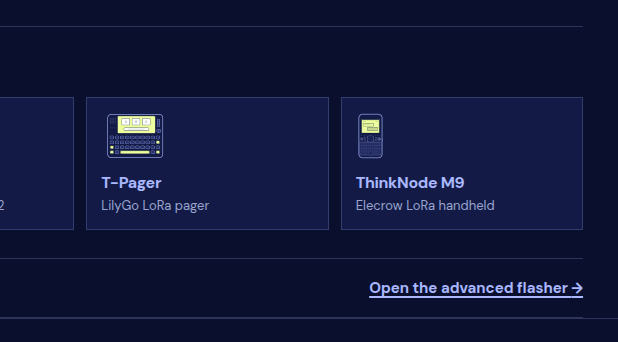
Open the Ratspeak advanced flasher. From the download page, select Open the advanced flasher.
-
Connect the board by USB. Select Select USB device and choose its port.
-
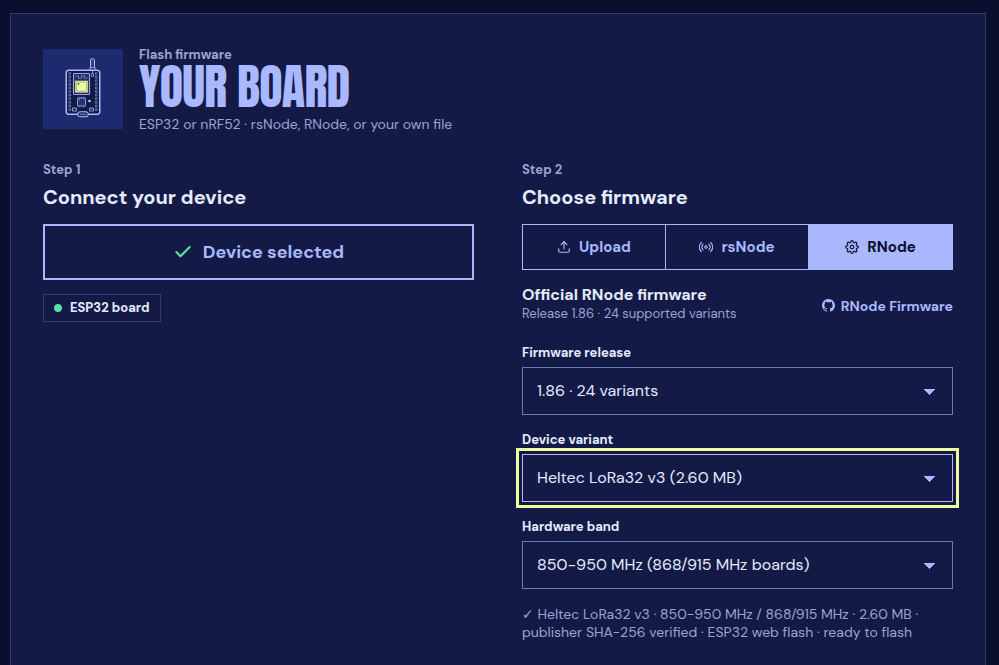
Under Choose firmware, select the RNode tab. Choose a Firmware release, the exact Device variant, and its Hardware band. If your variant is absent, stop rather than selecting a nearby model.
-
Check the selected board and band in the ready message. Under Advanced options, leave RNode setup enabled so the installer can provision and verify the radio.
The browser setup writes an unsigned RNode device identity. If you require a signed device identity, use the rnodeconf procedure. This device identity is separate from your Ratspeak messaging identity.
Flash and finish setup
- Select Install firmware. Review any erase notice before continuing. Keep the USB cable connected and the tab open.
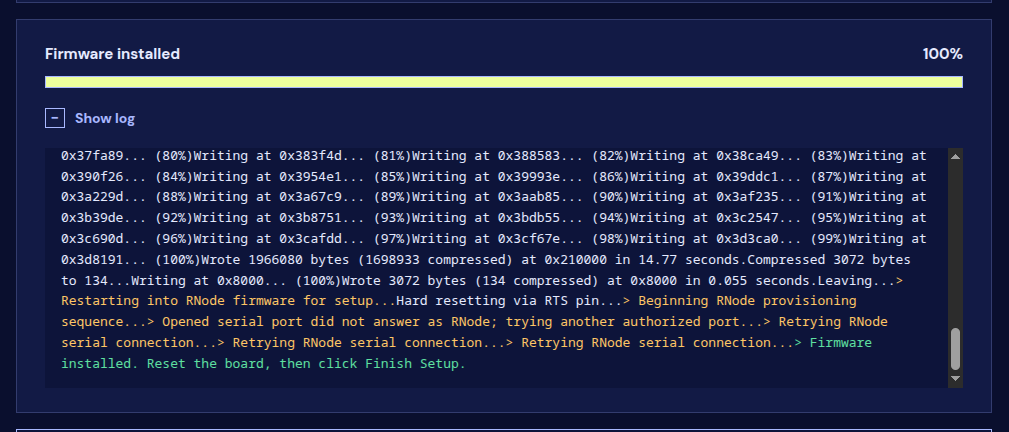
- Wait for both firmware writing and RNode setup to finish. Flash written alone is not confirmation that provisioning succeeded; wait for Firmware installed.
- If the page says Firmware is installed. Reset the board, then finish RNode setup, press RST. When its serial port returns, choose Finish Setup and select the port if asked.
- Wait for RNode setup complete and the message that setup was verified. If setup fails, keep the log and follow its error before trying another flash.
If the board cannot enter the flasher, use Heltec's bootloader instructions: hold USER/PRG, press and release RST, then release USER/PRG. The port may change. Use the board labels or its manual rather than assuming which button is on the left or right.
Connect to Ratspeak
Close the flasher so it releases the serial port. Add an RNode interface in Ratspeak, match the radio settings to a known peer, announce and exchange a message. Follow LoRa and RNode for those steps.
For help, include the board revision, chosen firmware, connection method and error text in the #documentation channel on Discord. Do not include identity keys or passwords.